

Emails with your brand
Customers should feel they are writing to you, not to a software provider. Two settings do that: your own sending domain, and the emails branding switch.
1. Send from your own domain
A custom sending domain is part of the paid plans. When your plan does not include it, the Email Domain tab still appears, marked with a premium icon, and opens the pricing page instead of the settings. If the tab is missing altogether, the feature is not switched on for your account, or your user role has no access to it. Ask us in that case.
Go to Settings → Email Domain.

-
Enter your domain name (for example
your-company.com) and press Add Domain. The button stays inactive until the field holds a name. -
The screen shows DNS Records to Configure — a list with Type, Name, Value and Priority. Priority is filled in for MX records only. Use the Copy button beside each Name and each Value. The records belong to the
mg.subdomain of your domain, because that is the domain we register with the sending service. Copy each Name exactly as shown. If your registrar wants the host relative to your domain instead of the full name, enter only the part in front of your own domain.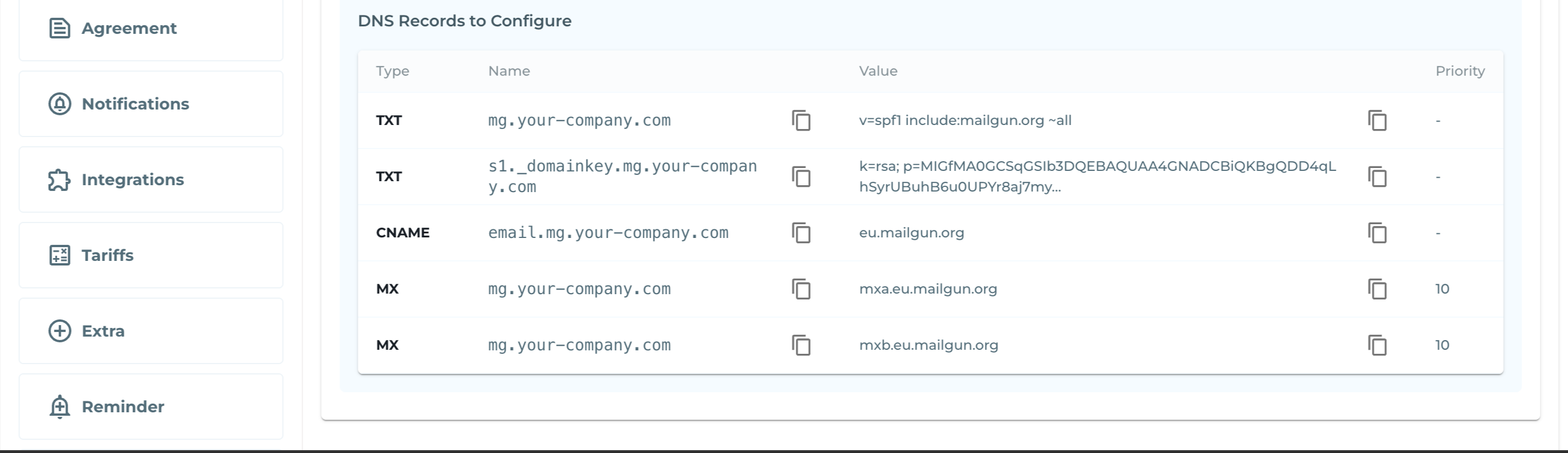
-
Add those records at your domain provider (the company where your domain is registered). This is the same place where your website and mailbox records live. If someone else manages your DNS, send them the list.
-
Come back and press Verify Domain. Status changes from Unverified to Active.
DNS changes can take from a few minutes to several hours to become visible. If verification fails immediately after adding the records, wait and try again.
Only one domain per account is supported.
Choose the sender address and name
Once the domain is added, the same screen offers:
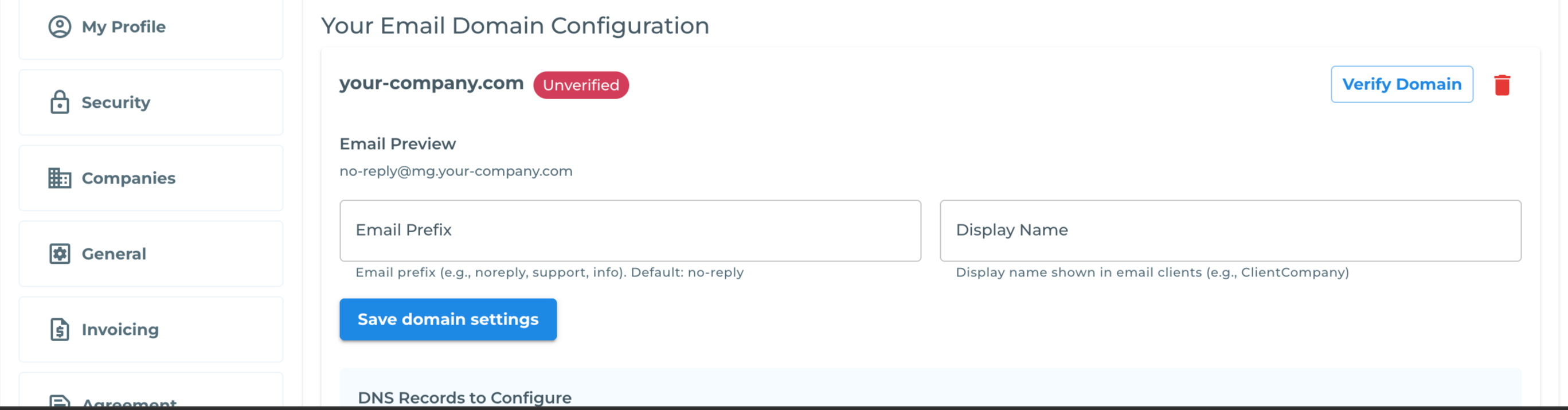
- Email Prefix — the mailbox part of the address, for example
noreply,booking,supportorinfo. Type any name you want. Default isno-reply. - Display Name — the name email clients show instead of the raw address, for example your company name.
Email Preview shows the resulting sender. Press Save domain settings.
The result in your customer’s inbox:
From: Your Company <booking@mg.your-company.com>The mg. part comes from the sending service and is always present.
Until the domain is verified
Every email listed under Which emails are affected, plus vehicle reminders, is sent from the Toprent sending address with your company email as Reply-To — replies still reach you, but the sender name is not yours. Feedback requests and birthday greetings carry no Reply-To. Verification is the step that changes this.
2. Put your logo in the emails
Go to Settings → General and switch on Emails branding.

With it on:
- Your company logo replaces the Toprent logo in the email header.
- The header becomes neutral white instead of Toprent blue.
- The Toprent footer band at the bottom of the email is removed.
The logo is taken from your company profile (Settings → Companies & Users). Upload a wide, horizontal version — email headers scale the image to a fixed width, so a tall or square logo becomes tall in the header and pushes the content down.
Which emails are affected
Both settings apply to the emails Toprent sends on your behalf: booking confirmations and updates, status changes, check-in and check-out notifications, contract and signature emails, delivery and collection notices, and payment notifications.
Reminder emails are the exception for branding. Feedback requests, birthday greetings and vehicle reminders always carry the Toprent logo, the blue header and the Toprent footer band, whatever the Emails branding switch says. Feedback requests and birthday greetings also always come from the Toprent address. Vehicle reminders do use your verified sending domain, and they go to your own staff, not to customers.
What cannot be changed
- No colour or layout editor for emails. Emails have exactly two looks: standard Toprent styling, or your logo on a white header with the footer removed. The colour picker in Settings → Agreement applies to PDF documents, not emails.
- Subject lines are system texts, translated into each supported language, and so is the body wording of every email listed above. Reminder emails are the exception: their title and body are your own templates, edited in Settings → Reminder.
- The sign-off stays “TopRent team”. Order, contract, signature and payment emails close with that line. The Emails branding switch changes the header logo, the header colour and the footer band only.
- One sending domain per account.
- A monthly sending limit applies to every account. Emails stop being sent once the limit is used up.
Take an email listed under Which emails are affected. If it still reads as coming from Toprent after both settings are configured, forward it to us and name the situation that triggered it — we will check that message. The sign-off, feedback requests, birthday greetings and vehicle reminders are the known exceptions.