

Branding: what your customers see
Toprent is designed to stay in the background. Your customers receive documents and emails with your company name, logo, colours and email address.
This page is the map: every customer-facing touchpoint, where you configure it, and where the boundaries are. Two of them have their own detailed guides:
The full picture
| Your customer sees | Where you set it up | What you control |
|---|---|---|
| Rental agreement / contract PDF | Settings → Agreement | Agreement layout, your own terms text, extra full-page images, document colour |
| Company name, logo, address, VAT on documents | Settings → Companies & Users (company profile) | Everything printed in the document header and footer |
| Sender of your booking, order, contract, payment and vehicle-reminder emails | Settings → Email Domain | Your own domain, mailbox prefix and display name — for example Your Company <booking@mg.your-company.com> |
| Logo and header inside the affected emails | Settings → General → Emails branding | Switches those emails to your logo and removes the Toprent footer band. Feedback requests, birthday greetings and vehicle reminders keep the Toprent look — see the email guide |
| Booking widget and website | Settings → Booking Widget, Settings → Sites | Colours, texts and placement on your own site. Each tab needs its own plan option |
| Offers (quotes) | Offer dialog in the Offer Generator | Your company details, logo and prices. A Toprent line prints at the bottom unless your plan removes app branding |
What your plan controls
Most of the settings above are open to every account. Four are plan options:
| Plan option | What it changes |
|---|---|
| Custom email domain | The Email Domain tab. Without it the tab carries a premium icon and opens the pricing page |
| Remove app branding from documents | The Toprent line on invoices, quotations, fines and offers |
| Widget | The Booking Widget tab. Without it the tab is hidden |
| Website | The Sites tab. Without it the tab is hidden |
We can also open the Booking Widget tab or the Sites tab for a single user without the plan option. If you see one of these two tabs without the plan option, it is open for you.
Your rental agreement, your company profile and the emails branding switch carry no plan option. Your user role decides who can open those tabs and who can use that switch.
Where your logo and company details come from
Documents and emails do not have separate logo uploads. They both read the company profile (logo, name, official address, VAT number, phone, website, email).
Update it once in Settings → Companies & Users and every contract, offer and email header follows.
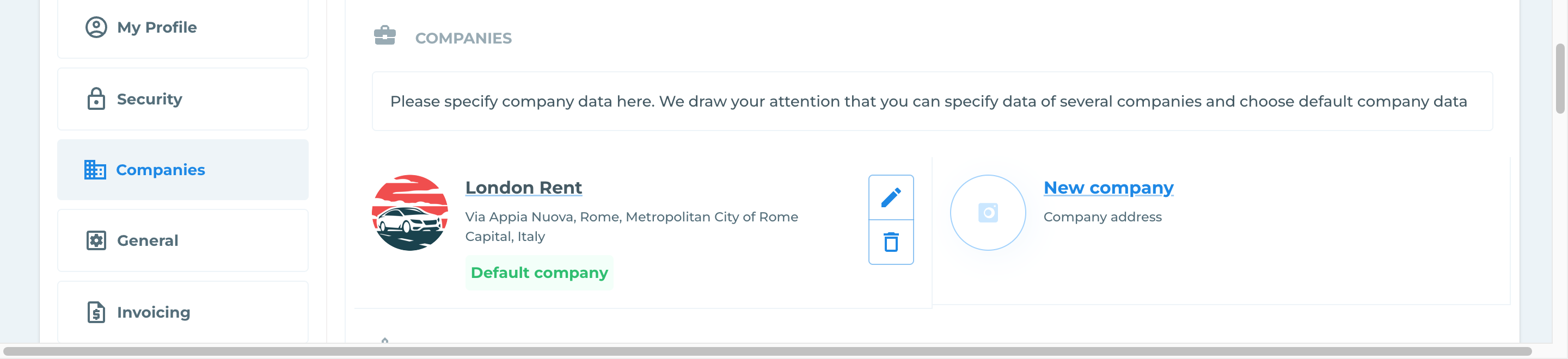
Press the pencil icon to open the company profile. The dialog holds every detail printed on your documents. Scroll down in the dialog for the VAT number. Accounts with XML invoicing also have the tax code fields below it.
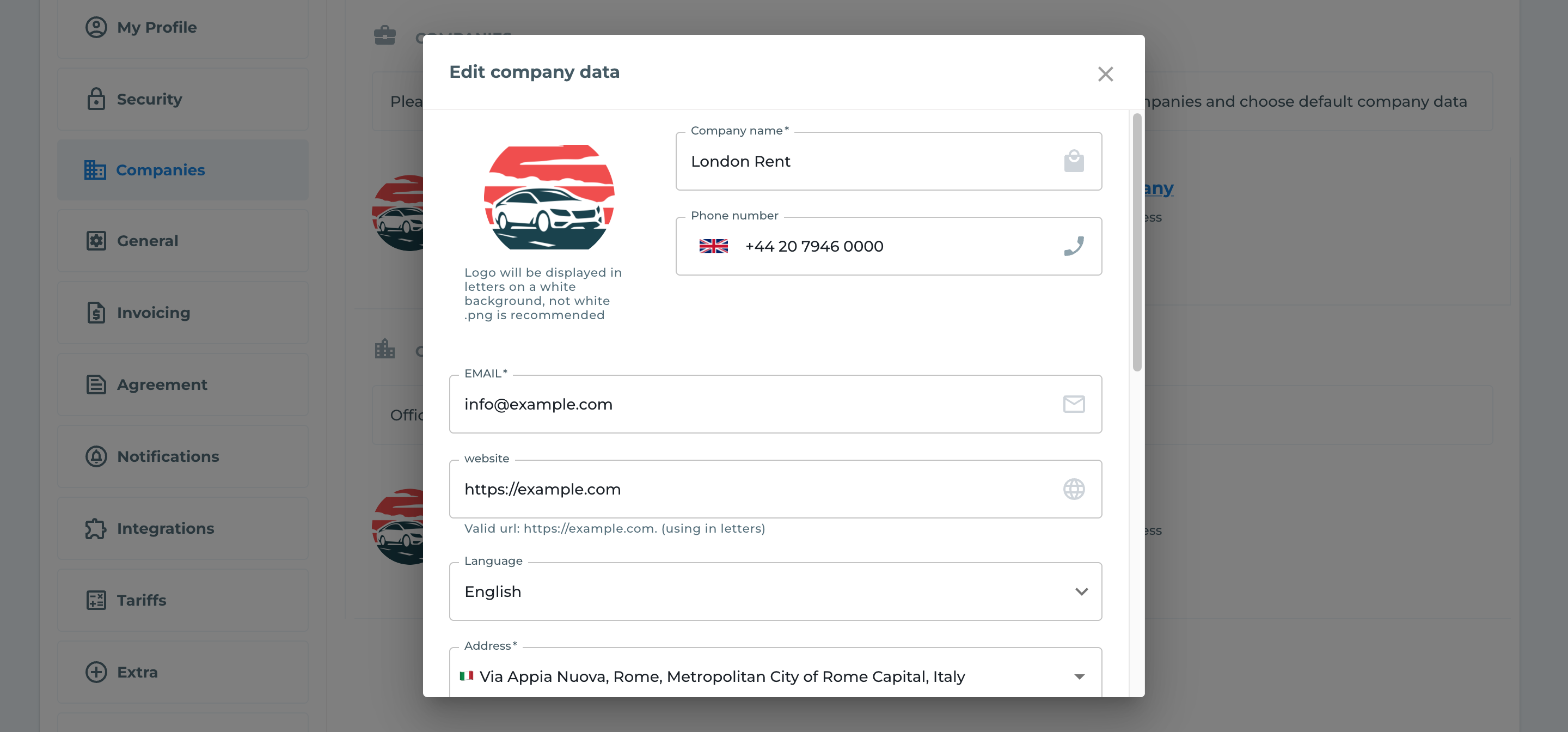
If your logo looks small or stretched in emails, upload a version with a horizontal (wide) shape — email headers scale the image to a fixed width.
Toprent branding on documents
Contracts carry no Toprent branding. Invoices, quotations, fines and offers print a Toprent line with the Toprent logo at the bottom. That line is removed by the plan feature that takes app branding off the documents. Ask us if your plan includes it.
What cannot be changed
Being direct here saves you time:
- The structure of the contract’s first pages is fixed. Vehicle and rental details, insurance and deposit, payments and damages are laid out by the system. You can add your own pages and replace all legal text, but you cannot rearrange or delete those tables. See the agreement guide for what to do instead.
- A PDF you designed elsewhere cannot become the live template. It can be added as extra pages (as images), but data is not filled into it automatically.
- Email colours are not configurable. Emails have two looks: standard Toprent styling, or your logo on a neutral white header (Emails branding switched on). There is no colour picker for emails; the colour picker in Settings → Agreement applies to PDF documents only.
- Email subject lines are system texts in each supported language, and so is the body wording of the emails above. Reminder emails are the partial exception: their subject stays a system text, but you write the title and the body shown inside them in Settings → Reminder.
- If your own sending domain is not verified, the emails listed in the table above are sent from the Toprent sending address with your company email as Reply-To. Verification is the step that puts your name on the envelope.
A note on the “White label” checkbox in offers
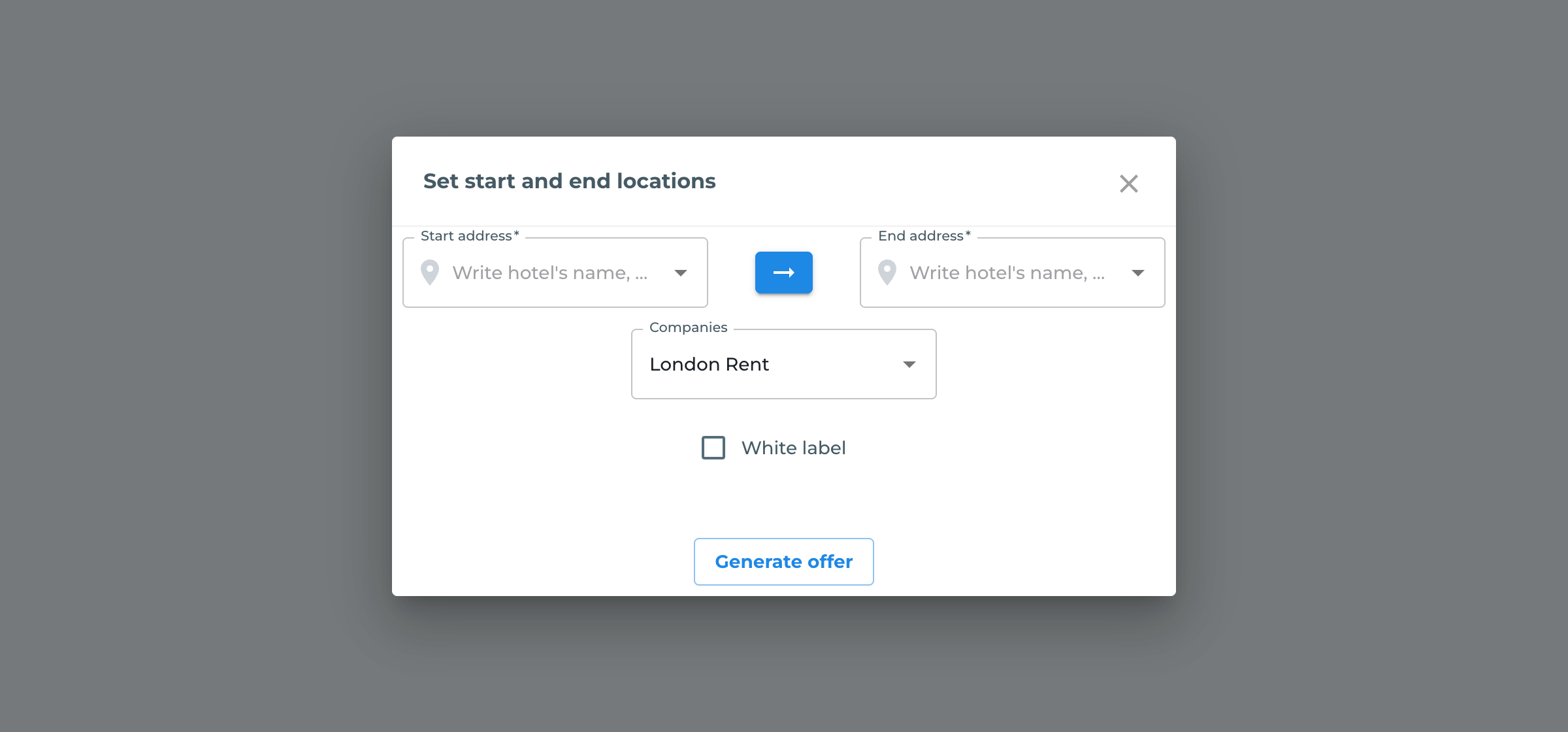
In the Offer Generator, the White label checkbox hides your company’s details from the offer. Your logo, address, phone number, email address and website are all dropped from the document. In their place the header prints the Toprent name and a Toprent promotion line, and the footer keeps the Toprent logo beside a line that links to the Toprent website. No phone number and no email address are printed for anybody. If your plan also removes app branding, even those Toprent marks disappear and the offer names no sender at all.
It exists for partners and brokers who forward a quote without revealing the fleet owner.
Leave it unchecked if you want your own brand on the offer.
If something is still missing
If your business needs a page, field or wording that the settings above do not cover, send us the document or email in question and describe the change. Custom document layouts are built as additional agreement types — tell us what you need and we will confirm what is involved.